










Google Business Profile
Be the business people find on Google.
When someone nearby searches for what you do, your Google listing is often the first thing they see. Townlight keeps it fresh with the posts you already approve, in the shape Google wants.
Three kinds of post
Each post in the shape Google wants.
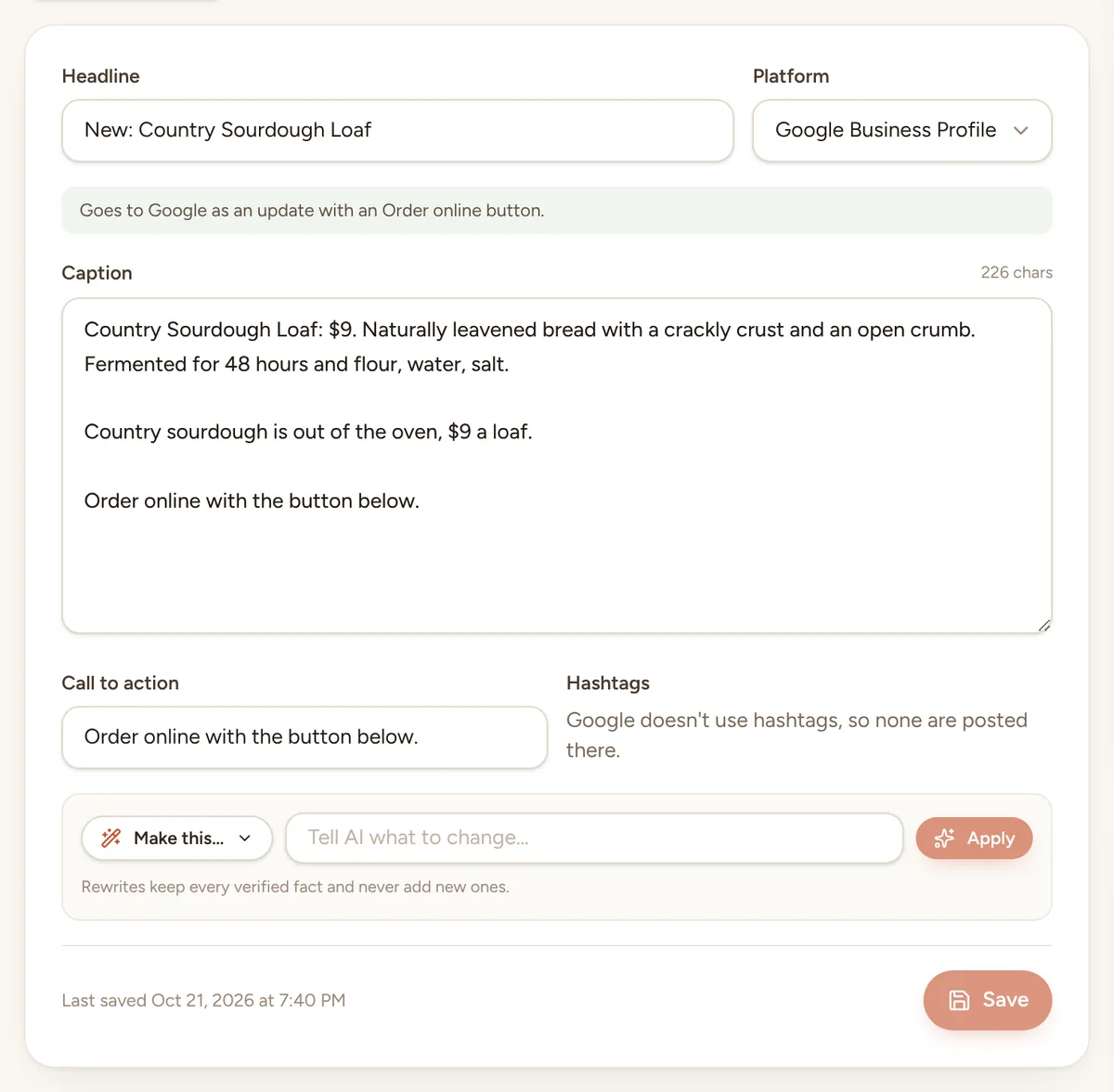
You write one post. Townlight decides what it is on Google from what it's about, and the editor tells you before you approve it.
Offer
A special or deal linked to a promotion with dates
- The promotion's name as the title and its dates, whole days
- A link to redeem it online when you have a booking or order link
- Any coupon code you wrote, like “code FALL20”
Event
An event post linked to an event that hasn't happened yet
- The event's name and its dates and times as you set them
- A Book button from your booking link, or Call now
- After the day, the thank-you goes up as an update
Update
Everything else: something new, a person, behind the scenes
- Order online for food and products, Book for services
- Call now when there's no link, from your phone number
- Hiring posts never get a booking button
Written for Google
Not a Facebook post pasted somewhere else.
Google shows posts differently, so Townlight writes them differently: shorter, plainer, and ending with the next step.
- No hashtags, because Google doesn't use them
- Up to 1,500 characters, with titles under 58
- Your phone number isn't repeated in the text; the button does that job
- The picture made for you, ready to download
- Scheduled with the rest of your posts, in your time zone
Step 1: Pick Google on a post
Google sits next to Facebook and Instagram on every post, and Townlight writes it the way Google wants.Step 2: Approve and schedule
At the time you picked, Townlight emails you. The post says whether to add it as an update, an offer or an event, and which button to give it.Step 3: Add it to your profile
Download the picture, copy the text and add the post in your Business Profile. Posting straight to Google is coming.
Then, the reviews
Ask for reviews the same afternoon.
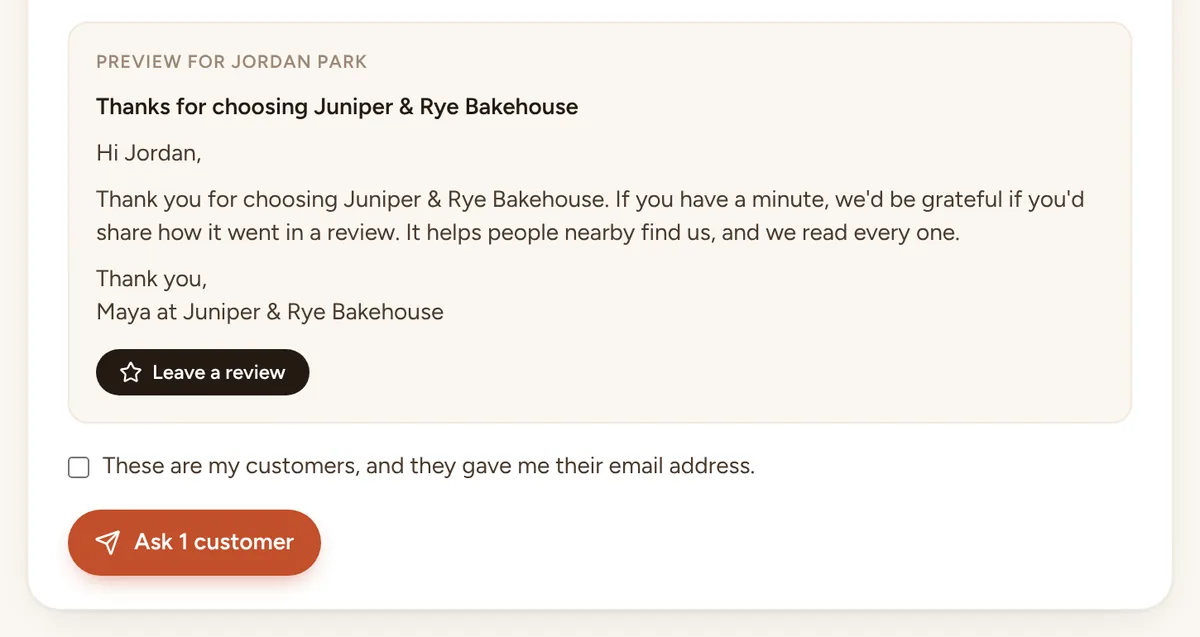
Paste your listing's review link once (it's under Ask for reviews in your Business Profile), and ask your customers for a review whenever you like.
See review requestsQuestions
About Google
What do I need?
I have more than one location.
Does it post things I haven't approved?
Will I see how my posts do?
Show up where people are looking.
Start the free trial, add your business details and a few photos, and see your first week of posts the same afternoon. Nothing goes out until you say yes.